IFrame Element
Frequently used to incorporate YouTube videos, the IFrame Element can embed a webpage within your form, allowing you to view and interact with that webpage at form runtime. When an IFrame Element has been added to your form, it will place a separate, self-contained browsing environment within the published form, and will resemble the following (note that in the example shown below, the IFrame has been configured to access the Allwebco webpage):
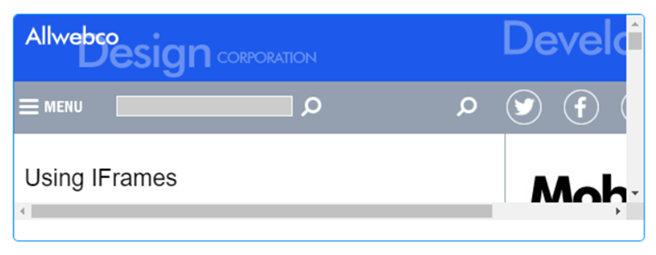

Once you have placed an IFrame Element on a page, you can edit the Element's properties to configure the Element for your requirements. Select the Element on the page to display its properties in the Properties Pane.
The following properties are available:
Element Version
The Element's version number, which may be (and is often) different to the installed version of the Digitise Forms software. For example, the version of the Element might be 1.5, but the version of the in-use/installed Digitise Forms software might be 2.0 etc.

Visible and Disabled Properties
Height
Allows you to specify the height of the IFrame Element, which must be a pixel value, and must include the px abbreviation after the value, e.g., 200px.
Width
Allows you to specify the width of the IFrame Element. By default, the width is set to 100%, but this can be altered to either a lower percentage, or to a size in pixels. In either case, the width specified must be followed by % or px.
Frame Border
Lets you show or hide the IFrame border. Available options are 0 and 1. To hide the border, select 0. To show the border, select 1.

Url
The source URL to be displayed within the IFrame.
